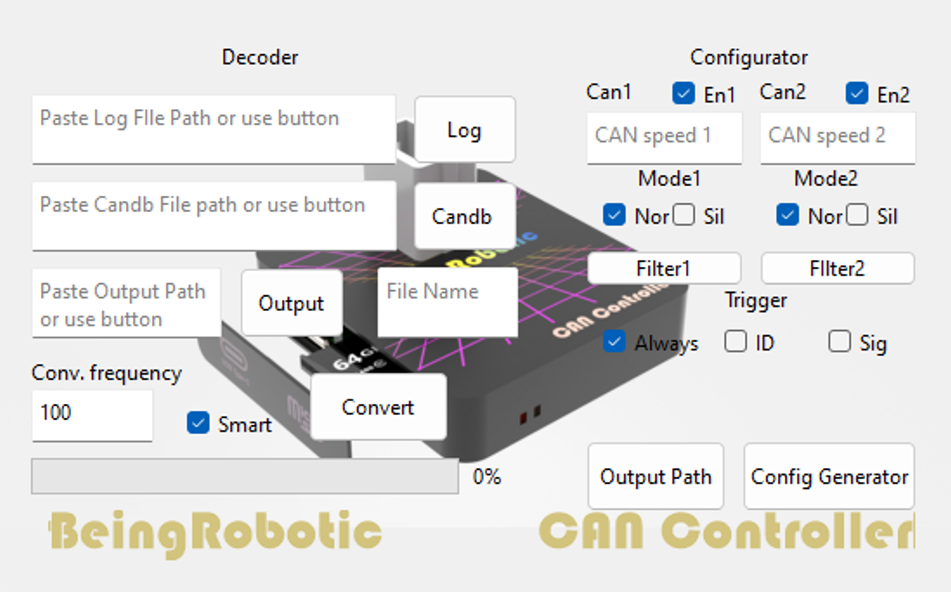
What does the software do?
Configure and convert data!
The main purpose of BeingDecoder is to configure a CanBus-controller board parameters such as CanBus parameters or logging trigger.
The same interface is able to manage log downloads and conversion.
How to configure CanBus parameters?
CanBus parameters!
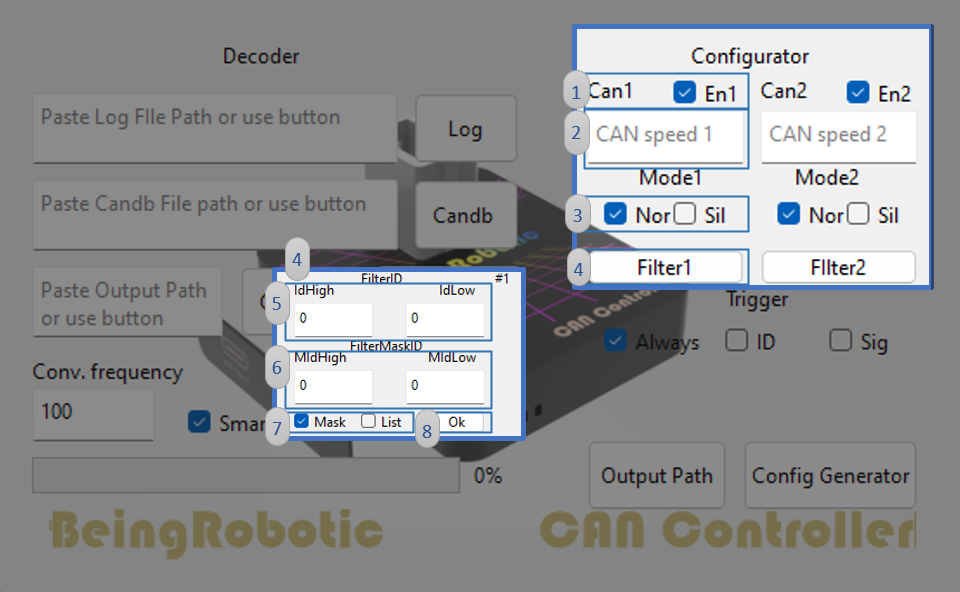
This interface lets you change CAN-bus parameters. The fields are described for CAN-bus line 1, but apply to the second line as well:
- Enable CAN-bus: when selected, the board can log; otherwise the bus is disabled.
- CAN-bus speed, from 33,333 to 1,000,000 bit/s.
- CAN-bus transceiver mode. Nor (normal) sends ACK to other nodes and is recommended; Sil (silent) does not send ACK and should be used only by advanced users.
For advanced parameters (not required), see this document:
- CAN-bus filter settings pop-up.
- IDHigh and IDLow for List masking mode.
- MIDHigh and MIDLow for Mask masking mode.
- Choose between List and Mask masking modes.
- Apply changes.
How to configure Log trigger?
Log trigger!
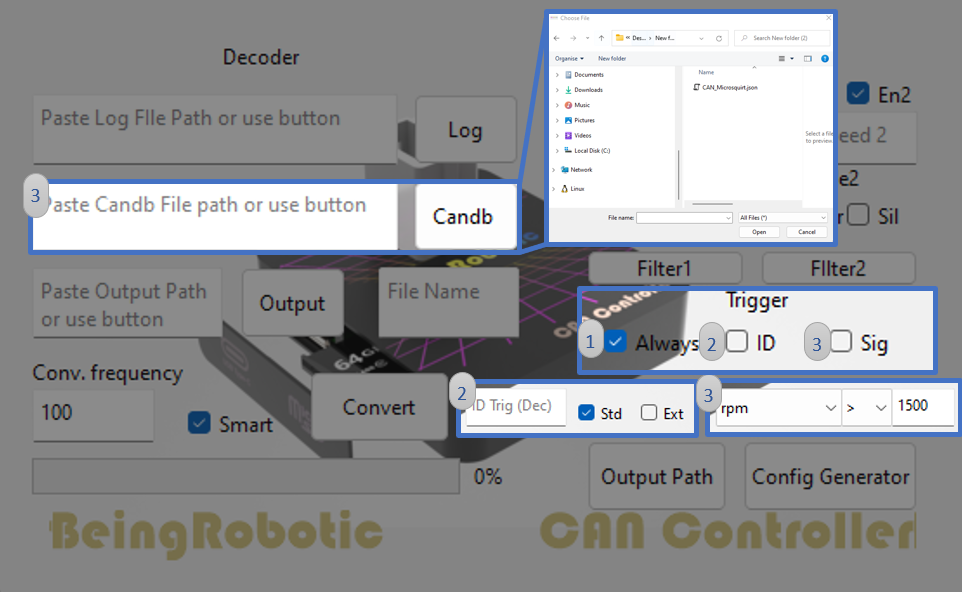
The log trigger starts logging only when a condition is met, improving efficiency and recording only useful information.
Three modes are available:
- Always: starts logging when the board powers on.
- ID: starts logging when the specified ID is found in CAN-bus traffic.
- Signal: starts logging when a condition is met on a signal. It requires a .json configuration (.json generator from .dbc). Select the file with the Candb button or enter its path. After updating the .json file, choose a signal from the database and set its start condition.
How to save and upload CanBus and Trigger configuration?
Upload configuration!
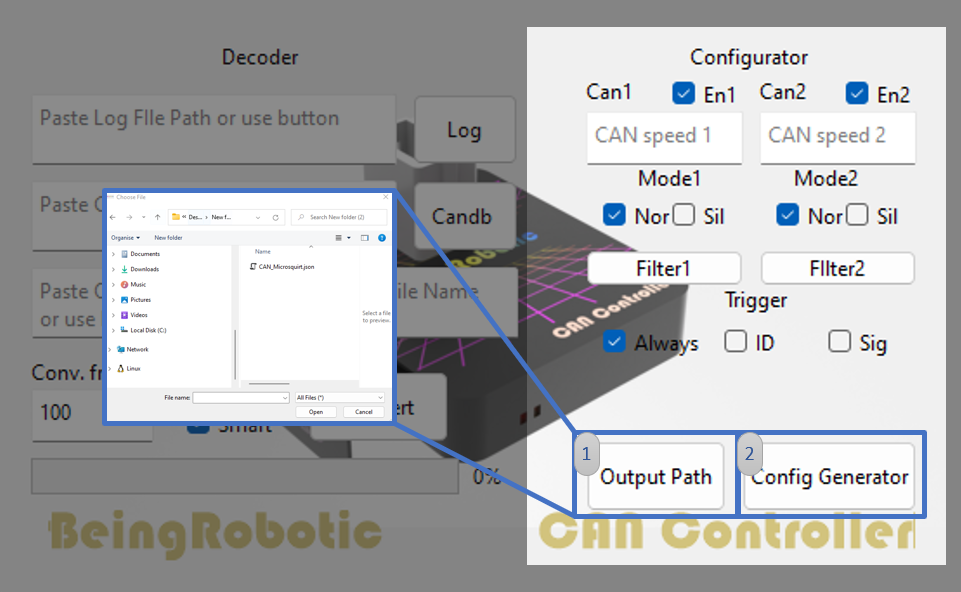
Saving the configuration is straightforward:
- Specify the output path with the button and choose the folder in the file explorer.
- The Config Generator button creates the config.bei file containing all CAN-bus configuration and trigger information.
How to send configuration file to CanBus-Controller?
A look at CanBus-Controller file system!
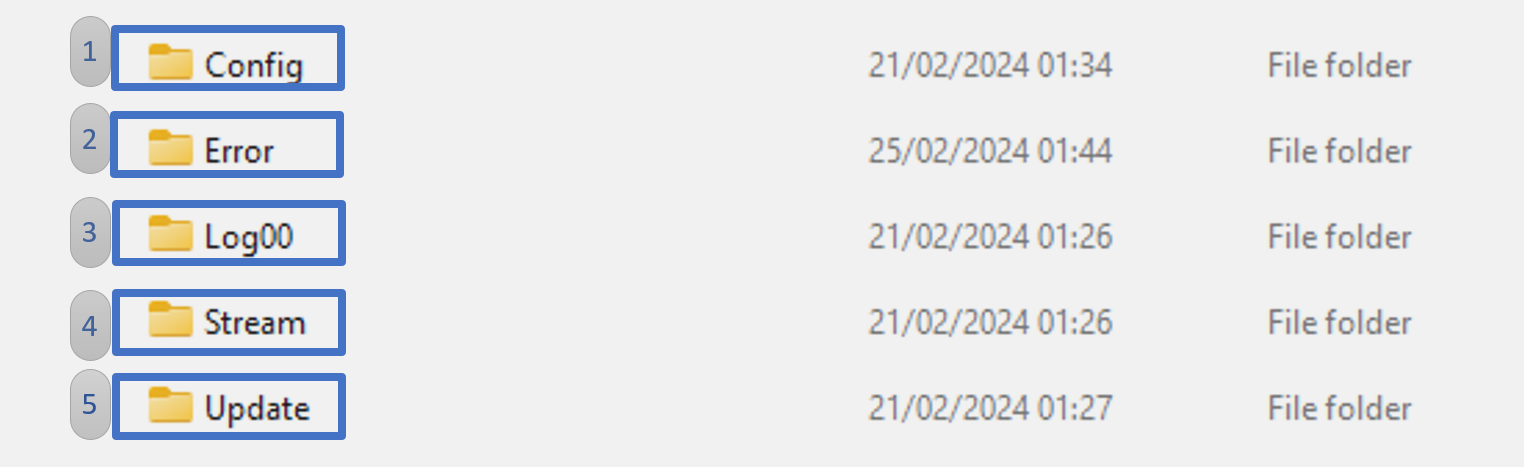
When the CanBus-Controller board is connected over USB (only USB-C–USB-A data cables are compatible) or the microSD is inserted in a PC, you can view its file system:
- Config folder: contains only config.bei. To change configuration, overwrite this file from BeingDecoder or manually. If it is missing or invalid, the board cannot operate correctly. Only files generated by BeingDecoder are compatible.
- Error folder: contains log errors.
- Log folder: contains sequentially numbered log files.
- Stream folder: streams CAN-bus data held in a particular file.
- Update folder: place the new firmware here; after reboot, the board automatically starts the update procedure.
How to convert log data?
Convert data!
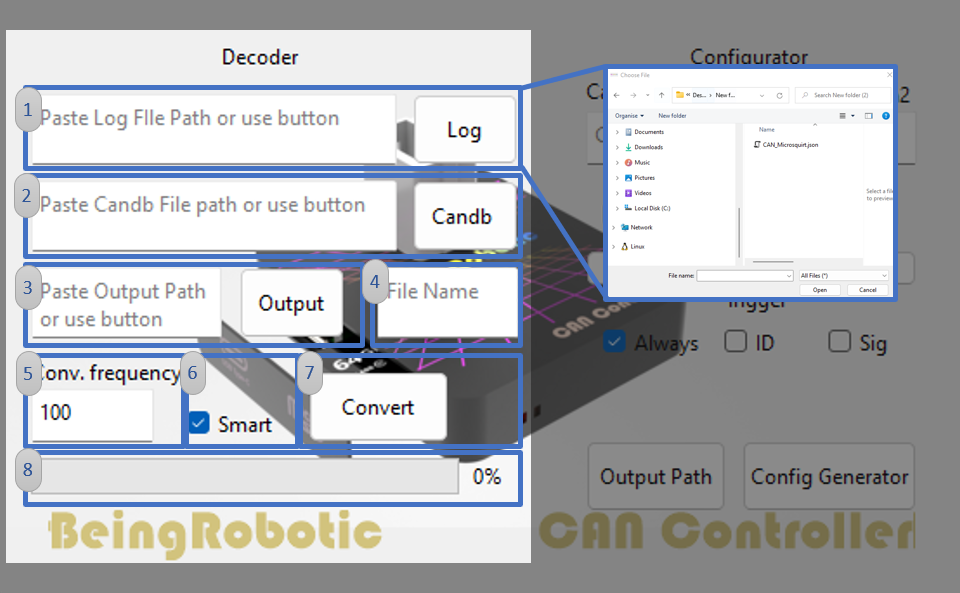
Data conversion is straightforward:
- Select the log data to convert. They are in the Log folder, use the .brc extension, and can be selected by direct path or with the Log button.
- Select a .json configuration (how to generate .json) by entering its path or using the button.
- Select the output path by entering it or using the button.
- Enter the file name; the .csv extension is recommended but not required.
- Because the log contains the native CAN-bus packet frequency, this parameter resamples to the desired frequency. Do not exceed the channel’s real frequency.
- The Smart checkbox increases conversion speed by analyzing only an initial portion of data. Disable it to ensure all packets are converted.
- Start conversion.
- Check conversion status.
How to get Licence?
Get Licence!
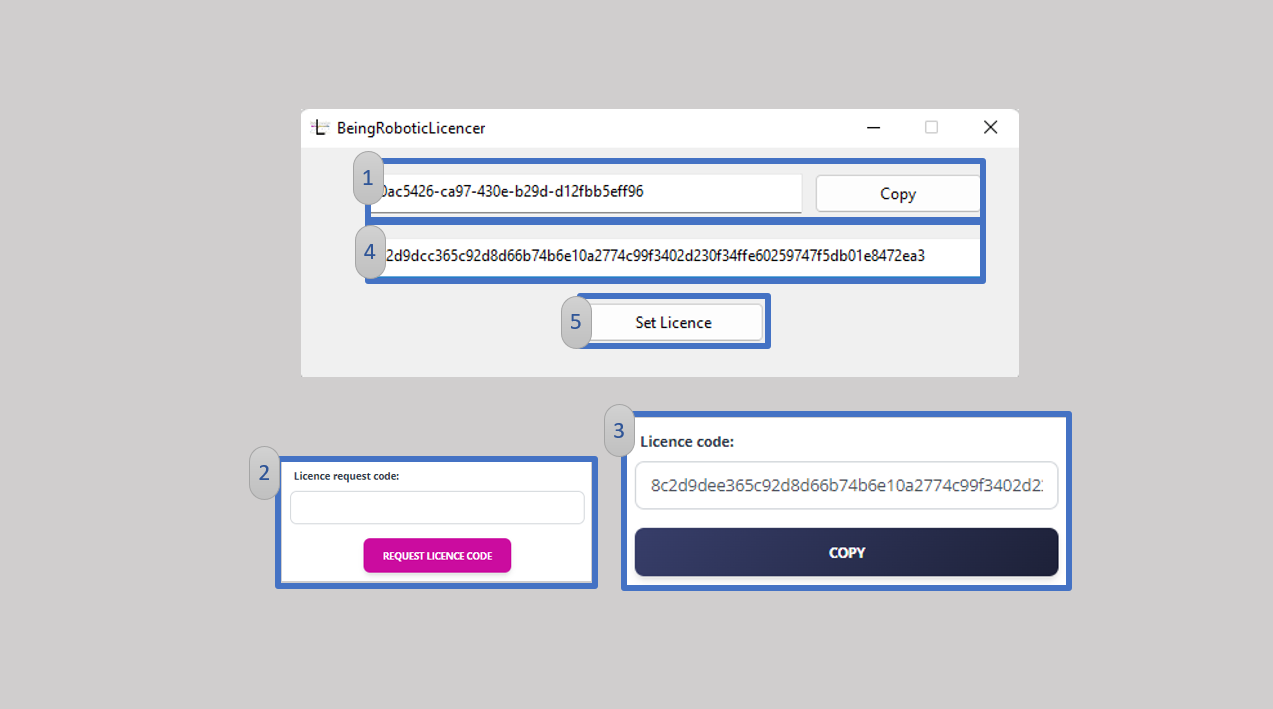
With the purchase of a BeingRobotic device, you are entitled to a BeingDecoder licence. Install BeingLicencer and follow these steps:
- Open the installed program and press the copy button.
- After signing in to beingrobotic.com, the licence generator appears at the top of this page. Paste the copied code and press “Request license”.
- After a few seconds, a new interface appears. Press copy or copy the entire code manually.
- Paste the code into the lower text box.
- Press “Set license”.
You can now use the BeingDecoder application.
Problem with installation?
Solve!
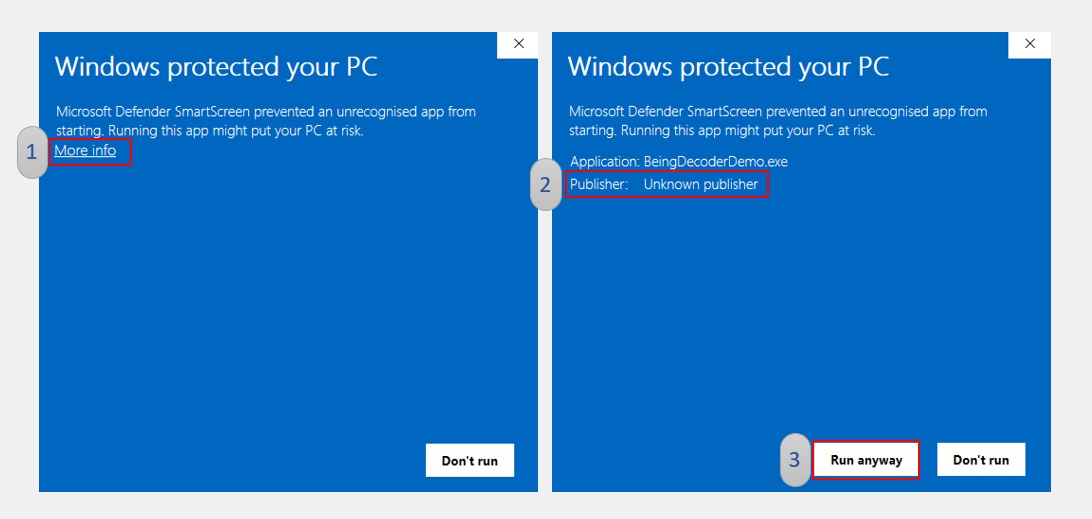
While our applications await digital signing, Windows may show this warning. To install, follow these steps:
- Click “More info”.
- The warning concerns the publisher, which is currently unrecognized.
- Click “Run anyway”.
The application does not request administrator privileges: it only needs to read and write files, without accessing system files.
If you have concerns about the procedure, email us.